The registration an account process is split into 4 simple screens...
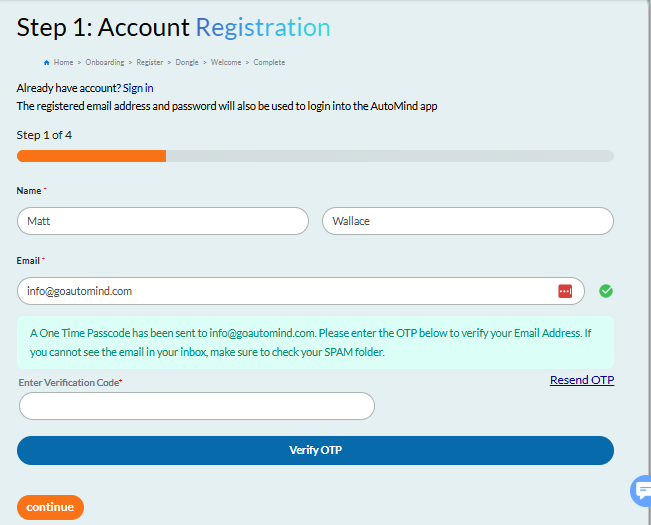
Screen 1: Name & Email Verification
Enter your name and email address. Then click the [Send OTP] button. This will send you a One Time Password (Verification Code) via email which you must enter and click the blue [Verify OTP] button. Once verified, this blue button will be replaced by an orange [Verified ✔] confirmation. You can then select the [Continue] button below to proceed to Screen 2.
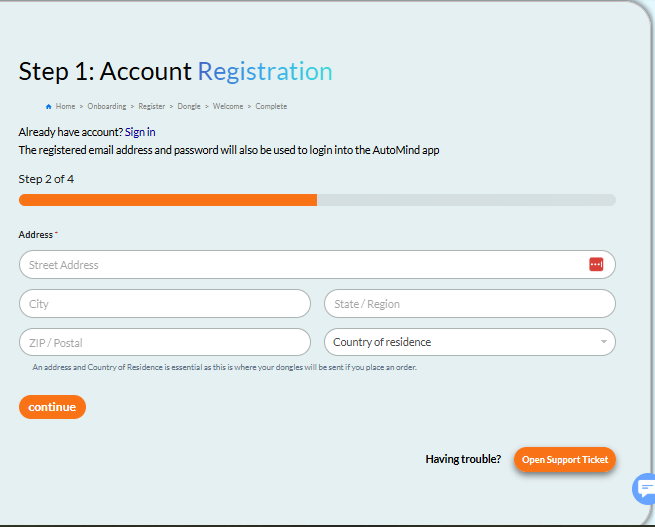
Screen 2: Full Address Entry
Here we require your full address including Country of Residence. If you are ordering dongles, this will be where we send them. Please ensure your address is accurate before using the [Continue] button to proceed to Screen 3.
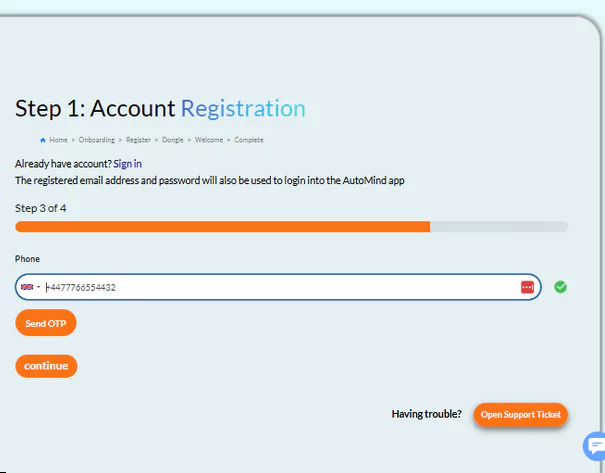
Screen 3: Mobile Number Verification
You will need to verify a unique mobile phone number. First, check the correct country code and enter your mobile number, then select the [Send OTP] button. You will receive the OTP via SMS. Enter it and confirm using the blue [Verify OTP] button. Once verified, this blue button will be replaced by an orange [Verified ✔] confirmation. Then select the [Continue] button to proceed to the final screen.
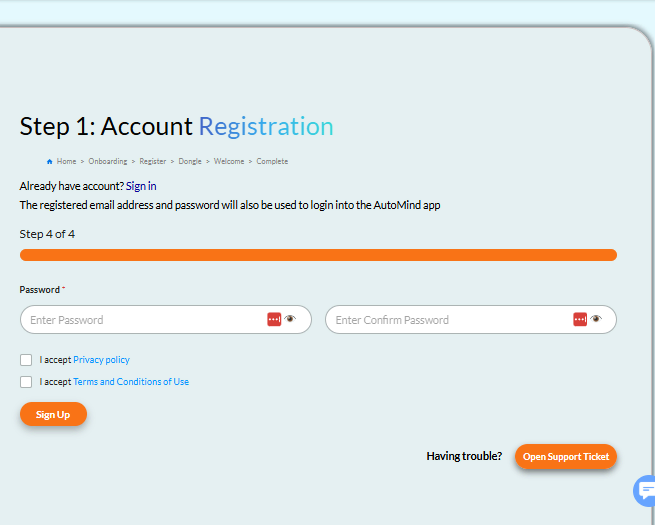
Screen 4: Set Your Password
Create your password (be sure to remember it as you'll need it along with your email to login to the AutoMind app), accept the Privacy Policy and Terms & Conditions. When done, select the [Sign Up] button to complete your account registration and proceed to STEP-2 for purchasing dongles.
Was this article helpful?
That’s Great!
Thank you for your feedback
Sorry! We couldn't be helpful
Thank you for your feedback
Feedback sent
We appreciate your effort and will try to fix the article